Dead pixel & screen test
Fill the screen with one flat colour at a time. A dead pixel stays black on every colour; a stuck pixel stays one bright colour. Dim the room lights and look slowly, section by section — including the corners.
In full screen, click or press any key to move to the next colour and Esc to exit. Black and white reveal most faults; red, green and blue isolate a single stuck sub-pixel. The gradient exposes banding and uneven backlight.
If you find one
Photograph it against two different colours — brands and retailers usually want evidence. Whether one bad pixel is covered depends on the maker's dead-pixel policy and the panel class, and policies differ, so check the warranty terms for your exact model before assuming either way. Inside a retailer's returns window, a return is usually simpler than a warranty claim.
Webcam test
See exactly what your camera sends: sharpness, focus, colour and framing — plus the real resolution it's delivering, which is often lower than the spec sheet.
Camera access is blocked — how to fix it
Your browser has this site's camera permission set to “Block”, so it won't even show the permission prompt. Reset it using the steps for your browser below, then press Try again.
- Chrome / Edge: click the icon at the left end of the address bar (a padlock or sliders icon) → Site settings → Camera → choose Allow, then come back to this tab.
- Firefox: click the padlock/camera icon in the address bar — if it says “Use the Camera: Blocked”, click the × next to it to clear the block. Then press Try again below and choose Allow in the prompt that appears.
- Safari on Mac: Safari menu → Settings → Websites → Camera → find this site in the list and set it to Allow. On iPhone / iPad: Settings app → Safari → Camera → Allow.
- Press Try again — it asks your browser for the camera again straight away.
Check: does the image freeze or smear when you move? Is text on a page held up to the lens readable? Many laptop cameras are 720p — the resolution readout above tells you the truth.
If it fails
“Camera in use” usually means another app (Zoom, Teams, a browser tab) is holding it — close those first. If permission was denied, re-allow the camera for this site in your browser's address-bar settings. On Windows, also check the physical privacy shutter and the Settings → Privacy → Camera toggle; on a Mac, System Settings → Privacy & Security → Camera.
Microphone test
Watch your voice as a live waveform and level, then record a few seconds and play it back — the only way to hear what everyone else hears: muffle, echo and all.
Speak at normal volume from where you actually sit. The level should bounce in the green-to-amber range; pinned at max the whole time means distortion, and barely moving means the wrong mic is selected — headsets and webcams often add their own.
If it fails
If the waveform stays flat, check the mic isn't muted on the headset or keyboard, then check which input your system has selected — this page uses the system default. If playback sounds echoey or distant, you're probably recording from a webcam or laptop mic across the room instead of the headset in front of you.
Keyboard test
Press every key once. Keys you've tested turn green; a key that never lights up — or lights up twice from one press — is the fault. Works with a physical keyboard.
Don't forget the easy-to-miss ones: function row, Caps Lock, both Shift keys, Enter, and the space bar pressed at its far left and right edges — a space bar that only works in the middle has a failing stabiliser or switch.
If a key fails
One dead key on a new board is a return, not a repair. On an older board, pop the keycap and clear debris first, and test in a second app to rule out software remapping. Repeated letters from a single press (“chatter”) on a mechanical board usually means that switch is wearing out.
Speaker & stereo test
Play a tone in the left channel only, then the right. Swapped or missing channels are common with new speakers, soundbars and headphones — and stereo tests are the only way to catch them.
With headphones, left-only should be in your left ear only. If both tones land in both ears, your output is set to mono somewhere (system accessibility settings are the usual culprit). If the 80 Hz tone is silent on laptop speakers, that's normal — small drivers can't reproduce it; on full-size speakers or a subwoofer it should be clearly felt.
If it fails
One silent channel: swap the left/right plugs or rotate the headphone jack — if the silence moves with the plug, it's the cable or connector; if it stays on the same side, it's the speaker or amp channel. Distortion on the bass tone at normal volume points to a damaged driver.
Refresh rate test
Measures the frame rate your browser is actually receiving, and lets your eyes compare motion at 30, 60 and your panel's real rate. A 144 Hz monitor silently running at 60 Hz is more common than you'd think.
Watch the two blocks cross the strip: the half-rate block steps and judders, the full-rate block glides. If both look identical and the reading says 60, your display chain is set to 60 Hz — the test is showing you the truth, not the box spec.
If it reads lower than your monitor
Work through the chain: (1) OS display settings — Windows Settings → Display → Advanced, or macOS System Settings → Displays — set the refresh rate there first. (2) Cable: older HDMI cables and ports can cap high-resolution displays at 60 Hz; DisplayPort or a newer HDMI lead often unlocks the full rate. (3) On laptops, check the port you're using goes to the GPU, and test on mains power — some laptops cap refresh on battery. (4) If you're viewing this page embedded inside another app or preview frame, browsers can cap embedded pages to 60 frames per second whatever the panel supports — open the site in its own browser tab and measure again.
Mouse test
Click, double-click and scroll inside the test pad. A worn switch reveals itself here: one physical click that registers twice — or a double-click that never registers — is the classic sign of a dying mouse.
right-click and scroll here
To check for unwanted double-clicking (“chatter”), click the left button once, slowly, ten times, and compare with the counter: if the count runs ahead of your clicks, the switch is bouncing. For movement: sweep the pointer steadily across the pad — the distance and speed readouts use the raw movement your mouse reports, which is also how you'd spot a sensor that skips or stalls on fast flicks.
If it fails
Chatter on one button only, on a mouse you otherwise like, is a worn micro-switch — on most mice it's not an economical repair, so treat it as a replacement or warranty claim and say so in those words: “left switch registers double-clicks from single presses.” If the pointer skips at speed, clean the sensor lens and try a plain, dark mouse mat before blaming the mouse — reflective and glass desks defeat many sensors. A scroll wheel that jumps backwards occasionally is usually dust in the encoder; compressed air is worth one try.
Internet speed test
Measures ping, download and upload between this device and a Cloudflare test server — so it tests your whole chain: this device, your Wi-Fi or cable, your router and your provider.
For a fair result: pause downloads and streaming, and test twice — once on Wi-Fi where you normally sit, once with a cable into the router (or standing next to it). If the wired result matches your plan and the Wi-Fi result doesn't, your provider is fine and the wireless link is the problem. Figures are the real transfer measured by this browser, not an estimate.
If it's slower than your plan
Restart the router and test again wired before calling your provider — support will ask you to do exactly that. High ping with good download speeds points at congestion or a busy Wi-Fi channel rather than raw line speed. Consistently low results on a wired connection, at different times of day, with the plan speed and your test results written down, is the evidence a provider can actually act on.
System info
Everything your browser is allowed to know about this machine, in one readout — the panel to open when support asks “what are you running?” Some values are estimates or withheld by the browser on purpose; those say so.
Handy pasted into a support ticket: it answers OS, browser, screen and GPU in one go. Nothing here leaves the page unless you copy it.
Reading the results
The GPU line comes from WebGL and names the renderer your browser is using — if it says a software renderer (like SwiftShader or “Microsoft Basic Render”) on a machine with a real graphics card, your browser isn't getting hardware acceleration, which explains sluggish video and 3D. RAM is an approximation the browser rounds deliberately, and on some browsers it's not reported at all. CPU cores are logical threads, not physical cores.
Touchscreen test
Tap, drag and press with several fingers at once. Every contact point is drawn where the screen reports it — a dead strip or corner shows up as a place your finger simply never lands.
four and five fingers at once
Drag one finger slowly along each edge and through every corner — edge and corner dead zones are the most common touchscreen fault and the easiest to miss. Then check multi-touch: most modern screens track 5–10 points, so if yours stops at 2, something is limiting it.
If it fails
A strip that never registers, after a clean of the screen and with any screen protector removed, is a digitiser fault — photograph a video of the dead zone for the claim. If touch works in some apps but not the browser, that's software, not the panel. On a laptop, also check the touchscreen hasn't been disabled in Device Manager or the BIOS — it happens after updates more often than panels actually die.
Gamepad test
Plug in a controller — or pair it over Bluetooth — then press any button to wake it. Every button and stick is shown live, so a dead button, a drifting stick or a sticky trigger is obvious in seconds.
Work through every button once, roll both sticks in slow circles, and squeeze the triggers gradually — the axis bars should move smoothly and, importantly, come back to exactly 0.00 when you let go. A stick that sits at 0.10–0.20 untouched is drifting.
If it fails
Nothing showing at all? Browsers hide gamepads until a button is pressed, and Bluetooth controllers must be paired with the system first — try a USB cable to separate “won't pair” from “won't work.” One dead button with the rest fine is a hardware fault worth a claim on a new controller. Stick drift on an older controller can sometimes be improved by recalibrating in your system or console settings, but drift on a new one is a return.
Display colour & gradient test
The faults a flat colour can't show: banding in gradients, shadow detail crushed to black, and highlight detail blown to white. Run it full screen in a dim room, at your normal brightness.
Smooth gradients should shade evenly with no visible steps or colour fringes. Banding shows as distinct vertical bands instead of a continuous ramp — some banding is normal on 6-bit laptop panels, harsh steps are not. Black level: you should just be able to separate the lowest squares (2–5%) from pure black. White saturation: you should just be able to separate the highest squares (250–254) from pure white.
If it looks wrong
Before blaming the panel: set brightness to your normal working level (tests at 100% brightness mislead), turn off “night light” / blue-light filters and any vivid or dynamic picture mode, and make sure your OS isn't running a colour profile meant for a different screen. If the lowest black squares are all one merged black, shadow detail is being crushed; if the top white squares merge, highlights are clipping — on an external monitor, the “limited vs full RGB range” setting in your graphics driver is the usual cause of both.
Audio latency test
Two checks: the delay your browser reports for its audio pipeline, and a tap-along test that measures the delay you can actually hear — the one that makes Bluetooth headphones feel out of sync with video and games.
Tap the button below (or press Space) exactly when you hear each click.
The beat test works because your tap has to wait for the sound to reach you: if sound leaves late, your taps land late by the same amount. Ignore the first beat, tap the remaining ones, and use wired headphones or speakers for the baseline — then repeat on Bluetooth to see exactly what it costs you. Typical results: wired ≈ under 30 ms of tap delay beyond your reaction pattern, Bluetooth ≈ 100–300 ms.
If latency is high
On Bluetooth, the codec decides a lot: check whether your device fell back to a call-quality profile (it will, if an app is holding the microphone open — closing it often halves the delay). In browsers, closing other heavy tabs and using the device's built-in output gives the lowest numbers. For video, many players and TVs have an audio-delay / lip-sync adjustment — measure here, then dial that figure in there.
Failed a test? Do this before you return anything
The order matters — evidence first, then the claim. Keep everything until the replacement is in your hands and has passed the same tests.
Capture the evidence
- Photograph screen faults against at least two solid colours from the test above
- Note which key, channel or camera failed, and on what date you first saw it
- Re-run the failing test in a second browser or app, to rule out a single app's settings
- Keep the order confirmation, serial number and box until the case is closed
Return vs. warranty
- Inside the retailer's returns window, a return or exchange is usually faster and simpler than a manufacturer warranty claim
- Dead-pixel cover varies by brand, model and panel class — check the policy for your exact model rather than assuming one pixel is (or isn't) covered
- Describe the fault in the test's terms: “one dead pixel, lower-left, black on all colours” gets a faster answer than “screen looks weird”
- Test the replacement with this same page before the returns window closes on it, too
Questions
The things people ask before they trust a browser test with their camera and keyboard.
Do my camera or microphone recordings leave my device?
No. Every test on this page runs locally in your browser. The camera preview, the microphone waveform and the playback recording exist only in this tab, only while it's open — nothing is uploaded, and closing the tab discards them.
What's the difference between a dead pixel and a stuck pixel?
A dead pixel stays black on every colour — it receives no power. A stuck pixel stays one bright colour (red, green or blue) because one sub-pixel is always on. The colour-step test separates them: black on white and black on black means dead; a coloured dot that only shows on some backgrounds means stuck.
Can this page fix a dead pixel?
No — and be wary of pages that promise it. A physically dead pixel is a hardware fault. The test's job is to prove the fault exists and pinpoint it, which is what you need for a return or warranty decision.
Why does my refresh rate read 60 Hz on a 144 Hz monitor?
Because right now, your system is delivering 60 Hz to the browser. The usual causes are the OS refresh setting still on 60 Hz, a cable or port that can't carry the higher rate at your resolution, or a laptop capping refresh on battery. The refresh test section lists the order to check them in.
Which test should I run on a brand-new device first?
The screen test. Dead pixels and backlight bleed are the faults most likely to be argued about later, and they're unambiguous on day one. Then keyboard and speakers, then camera and mic — the full run-through takes about two minutes.
Does the keyboard test work on a phone or tablet?
It needs a physical keyboard — an on-screen keyboard doesn't send the key events the test listens for. The screen, speaker and refresh tests work on phones and tablets; the webcam test can use front and rear cameras.
How can I tell if my mouse is double-clicking by itself?
Use the mouse test: click the left button once, slowly, several times and watch the click counter. If single clicks sometimes register as double-clicks, or the double-click gap readout shows impossibly short gaps between separate presses, the switch under that button is wearing out — a fault known as chatter.
How accurate is a browser internet speed test?
It measures the real throughput between this device and the test server, which includes your Wi-Fi or cable, your router and your provider. Run it wired, close to the router, and compare against your plan speed — a big gap on Wi-Fi that disappears on a cable points at your wireless link, not your provider.
Why does my gamepad not show up in the gamepad test?
Browsers only reveal a gamepad after you press a button or move a stick on it, as a privacy measure. Connect the controller, press any button, and it should appear. Bluetooth controllers may need to be paired with the system first.
Can a browser measure my exact CPU model or temperature?
No. Browsers deliberately report a reduced picture — core count, an approximate memory figure, and the GPU renderer string via WebGL — and they get no access to temperature, fan or voltage sensors at all. The system info panel shows everything a browser is allowed to see, and labels the estimates as estimates.
From the blog
Guides that go deeper than the test panels: what the results mean and how to fix what fails. All guides →

How to Test Your Webcam When It's Not Working
Webcam black, frozen or not detected? Test your webcam in your browser first, then work through the fixes in order: permission, privacy shutter, app conflicts, drivers and resolution.
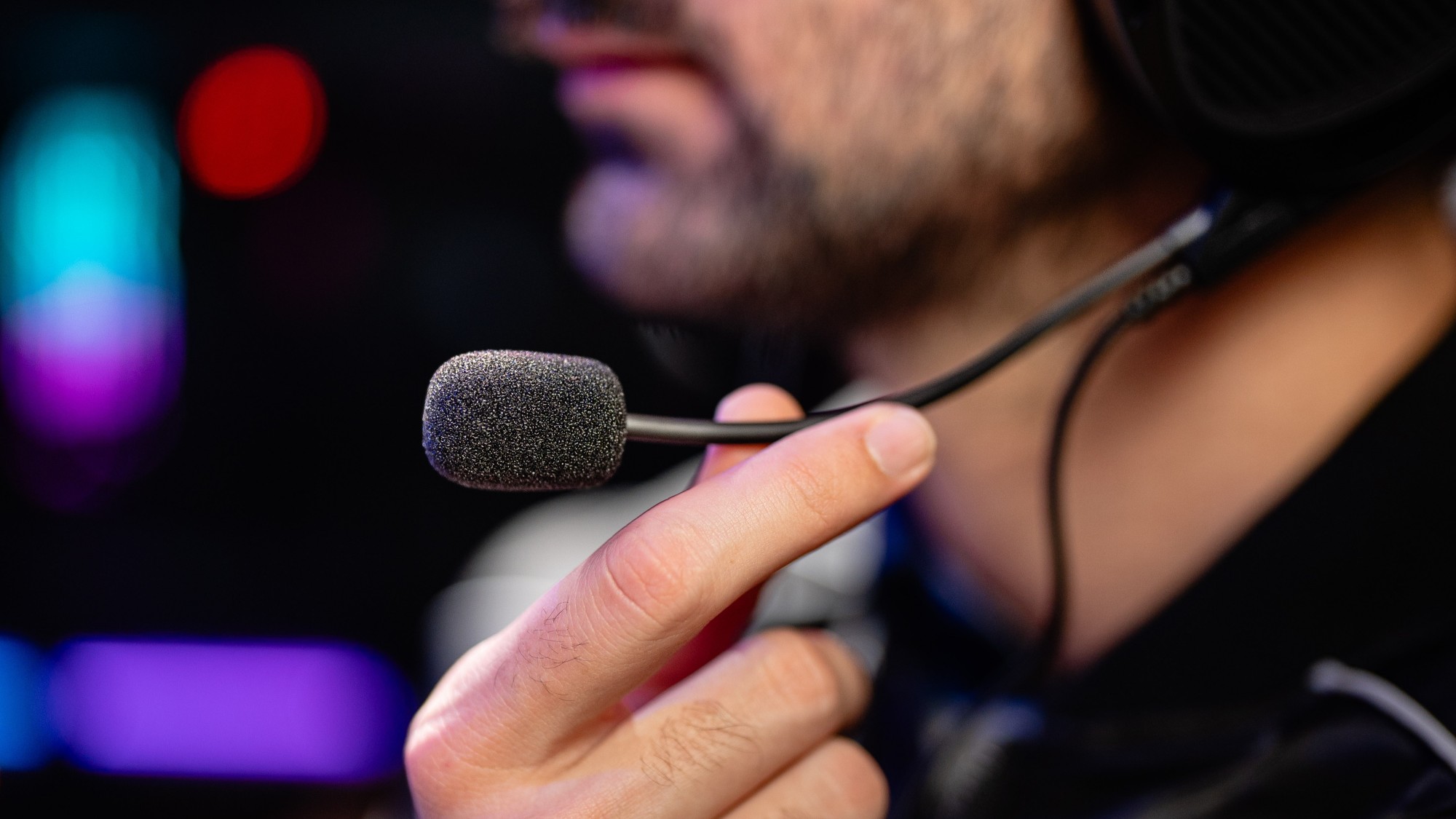
How to Test Your Microphone and Fix It When No One Can Hear You
No one can hear you on calls? Test your microphone with a live waveform and a record-and-playback check, then fix the real cause: wrong input selected, muted hardware, low gain or a blocked permission.

Dead Pixel Test: How to Find Stuck and Dead Pixels on Your Screen
Dead pixel vs stuck pixel: what each one is, how to find them with a full-screen colour test, what might revive a stuck pixel, and what your warranty is actually likely to cover.

Keyboard Keys Not Working? How to Test Every Key
One key dead, keys repeating, or a whole row out? Test every key methodically, tell software faults from hardware faults, and fix the common causes before you replace the keyboard.