Guide · Device Test Toolbox
How to Check Your PC Specs and What They Mean
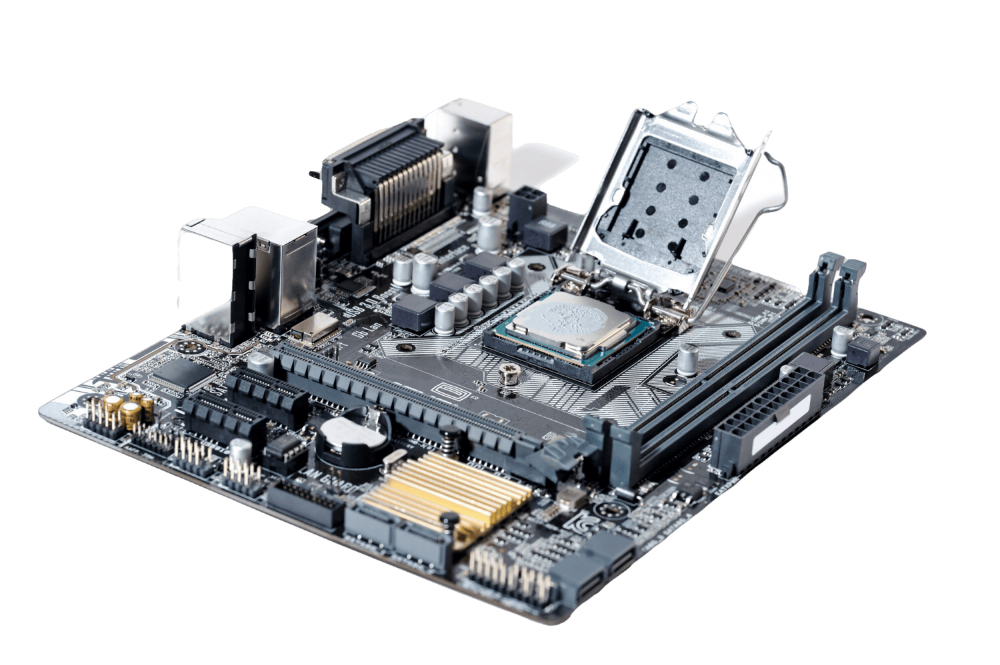
“What are your specs?” is the first question in every upgrade decision, every support ticket and every “will it run this?” search — and most people cannot answer it for the machine in front of them. This guide shows you how to read off what your PC actually has, and, more usefully, what each number governs, so a spec sheet stops being a wall of jargon and becomes a set of decisions.
Start with the readout
Open the system info panel on this site. Your browser reports the essentials in one place: operating system, browser, CPU core count, approximate memory, the GPU renderer string, screen resolution, pixel ratio and colour depth. It is honest about its limits — browsers deliberately report a reduced picture, round the memory figure, and get no access to temperatures or exact CPU models. For the exact model names, use your system tools as well: on Windows, Settings, then System, then About, plus Task Manager's Performance tab; on a Mac, the Apple menu's About This Mac. The browser readout is the fastest way to answer a support question; the system tools are the authority for upgrades. As with everything here, nothing is uploaded — see the Privacy Policy.
CPU: cores, threads and what they govern
The processor runs your programs' logic. Two figures matter: how many cores it has — genuinely parallel workers — and its generation, because a newer core does more per cycle than an older one, which is why headline gigahertz comparisons across generations mislead. Browsers report logical cores, meaning threads including virtual ones, so a reading of 8 may be 4 physical cores with hyper-threading. For everyday work, almost any modern CPU suffices; video editing, compiling, simulation and heavy multitasking are what reward more and newer cores.
RAM: how much, and why it fills up
Memory is working space, not storage. When RAM fills, the system swaps to the much slower storage drive, and everything stutters at once — that beachball moment is usually RAM, not CPU. 8 GB is a workable minimum, 16 GB is the comfortable standard for a mixed workload with many tabs and apps, and 32 GB serves creators, developers and heavy multitaskers. Note that browsers round the reported figure on purpose, so treat a browser reading of “~8 GB” as an estimate and confirm exact capacity in system settings before buying more.
GPU: the name that decides games and displays
The graphics processor drives games, 3D, video effects — and how many displays you can run at what refresh rate. The browser's GPU line comes from WebGL and names the renderer in use. Read it carefully: if it names a software renderer such as SwiftShader or a basic render driver on a machine with a real graphics card, your browser is not getting hardware acceleration, which explains sluggish video and 3D all by itself. Integrated graphics share system RAM; discrete cards carry their own memory (VRAM), which is the figure games ask about. Pair this with the refresh rate test: the GPU and its connection decide whether your 144 Hz panel can actually be fed at 144 Hz, as our refresh rate guide explains.
Storage and screen: the two specs you feel daily
Storage type matters more than size for everyday speed: an SSD makes a machine feel years younger than a spinning hard drive, and a nearly full drive slows any system — keep headroom. Your screen figures are in the readout too: resolution is the pixel count, pixel ratio tells you how sharply text is rendered on high-density displays, and colour depth describes colour precision. The gradient test shows whether the panel lives up to those numbers in practice.
Using specs against requirements
When software lists minimum and recommended requirements, compare like with like: your CPU generation and cores against theirs, your RAM against theirs, your GPU class and VRAM against theirs. Meeting the minimum means it runs; the recommended column is the honest target for a good experience. Keep a copy of your readout — the system info panel has a copy button for exactly this — and you will never re-derive it mid-ticket again. If a component then misbehaves, test it directly: screen, keyboard, connection — each guide starts from a measurement, not a guess.
Keeping your specs where you can find them
Specs are only useful if you can produce them at the moment someone asks — mid-checkout, mid-ticket, mid-argument about whether a game will run. Use the copy button on the system info panel and keep the result somewhere you will actually find it: a note in your password manager, an email to yourself, a file beside your receipts. Update it after any upgrade; a spec sheet describing a machine you no longer own is worse than none, because it gets believed. While you are there, record the two numbers browsers cannot give you — exact CPU model and exact storage type and size — from your system settings, so the note is complete. Then, when a fault appears, you start every support conversation a step ahead: what the machine is, what the failing test measured, and when it started. Support teams triage on exactly those three facts. Everything on this site is built around producing them quickly — the tests give you the measurements, and this guide gives you the vocabulary to make them understood.
Try it now: run the free System info — it runs in your browser, and nothing is uploaded.