Guide · Device Test Toolbox
How to Test Your Speakers and Fix No Sound
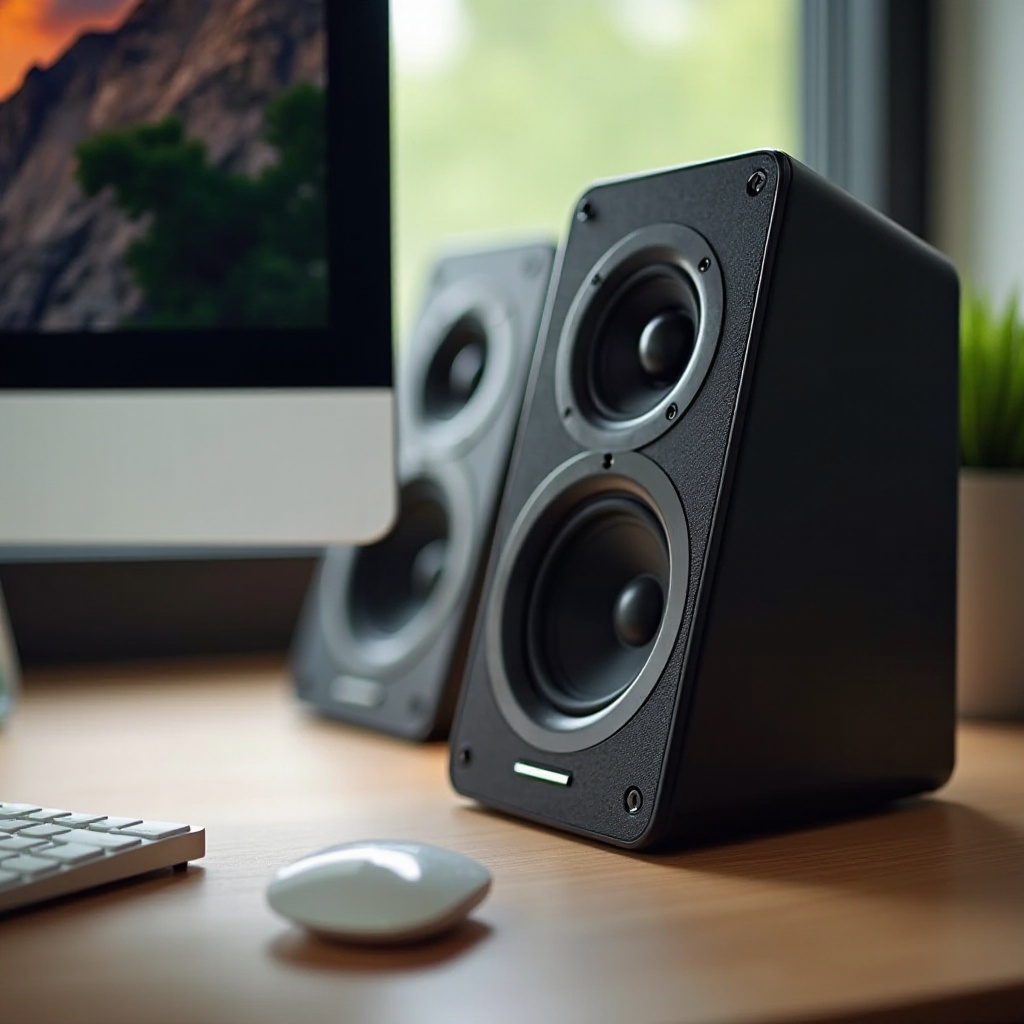
No sound at all is annoying, but the faults that survive longest are the subtle ones: sound from only one side, left and right swapped, or everything collapsed into mono. Music and video hide those faults for months. Test tones do not. This guide checks each channel separately, then works through the causes of silence in the order you should check them.
Step 1: Test left and right separately
Open the speaker and stereo test and play the left-only tone, then the right-only tone. Left-only should be audible only from the left speaker or your left ear; same for right. Then run through the fixed tones and the frequency sweep. Keep the volume modest — pure test tones are louder than they feel.
Your results sort themselves into a few clear stories. One side silent is a channel fault: cable, connector, speaker or amp. Both tones in both ears means your output is set to mono somewhere — check your system's accessibility settings, where a mono-audio toggle is the usual culprit. Left tone from the right side means the channels are swapped: the speakers are the wrong way round, or a plug is reversed. A sweep that warbles, buzzes or drops out in one band points at a damaged driver or something rattling nearby.
Step 2: Silence everywhere — the boring checks first
Work from the software outward. Confirm the correct output device is selected: systems happily send sound to a disconnected HDMI monitor, a Bluetooth headset in another room, or a dock that is no longer attached. Check the app volume, the system volume and any volume on the speakers or headset themselves — three separate controls, all capable of muting you. Look for a physical mute or a function-key mute. Then restart the app producing sound; audio devices that change mid-session confuse many programs until they relaunch.
Step 3: Interrogate the cable
For one silent channel, swap the left and right plugs at the source. If the silence moves to the other side, the fault travels with the cable or the speaker — try a different cable first, because cables fail far more often than speakers. If the silence stays on the same side, the fault is in that speaker or that amplifier channel. Rotate a 3.5mm plug in its socket while a tone plays: crackling or sound that comes and goes means a worn connector. With headphones, the same test applies — and if one ear is dead on two devices, the headphones have told you the answer.
Step 4: Understand the tones you cannot hear
Do not panic if the 80 Hz bass tone is silent on laptop speakers. Small drivers physically cannot reproduce deep bass; silence there is physics, not a fault. On full-size speakers or with a subwoofer, the same tone should be clearly present. At the other end, the 10 kHz tone fades with age for many adults — if younger ears in the house hear it, your speakers are fine. Judge your system on the midrange tones and the channel checks, which every working speaker must pass.
Step 5: Bluetooth and delay
Bluetooth adds two failure modes: pairing to the wrong device, and delay. If sound lags noticeably behind video, measure it with the audio latency test — wired connections typically land under 30 ms of tap delay, Bluetooth commonly 100–300 ms, which is why dialogue looks dubbed. Also watch for the call-profile trap described in our microphone guide: when an app opens the microphone, many Bluetooth headsets drop into a low-quality mode that wrecks music until the mic closes.
When it is hardware
Distortion on a bass tone at modest volume, one channel dead after cable swaps, or a speaker that crackles at any volume — those are hardware verdicts. On a new purchase, test both channels the day it arrives, the same way you would run the dead pixel test on a new screen: inside the returns window, evidence plus timing makes the claim simple.
Testing headphones and soundbars the same way
Everything in this guide applies beyond desktop speakers. With headphones, the left-only and right-only tones settle the most common quiet fault — wearing them the wrong way round after a cable swap — and the sweep exposes a driver that rattles on one side only. With a soundbar or TV, play the channel tones from your normal seat: centre dialogue in films is mixed to the centre, so if voices sound hollow or off to one side, the channel check tells you whether the bar is receiving stereo correctly or down-mixing badly. Bluetooth speakers add one more variable — distance and walls — so test at the spot where you actually listen, not beside the router. And if the tones are clean but everything still sounds thin, check for an equaliser or “night mode” quietly compressing your audio in the TV or app settings; dynamic-range compression is a feature that feels exactly like a fault until you find the toggle. Test tones give you the facts; settings explain most of the rest.
Try it now: run the free Speaker & stereo test — it runs in your browser, and nothing is uploaded.