Guide · Device Test Toolbox
How to Test Your Microphone and Fix It When No One Can Hear You
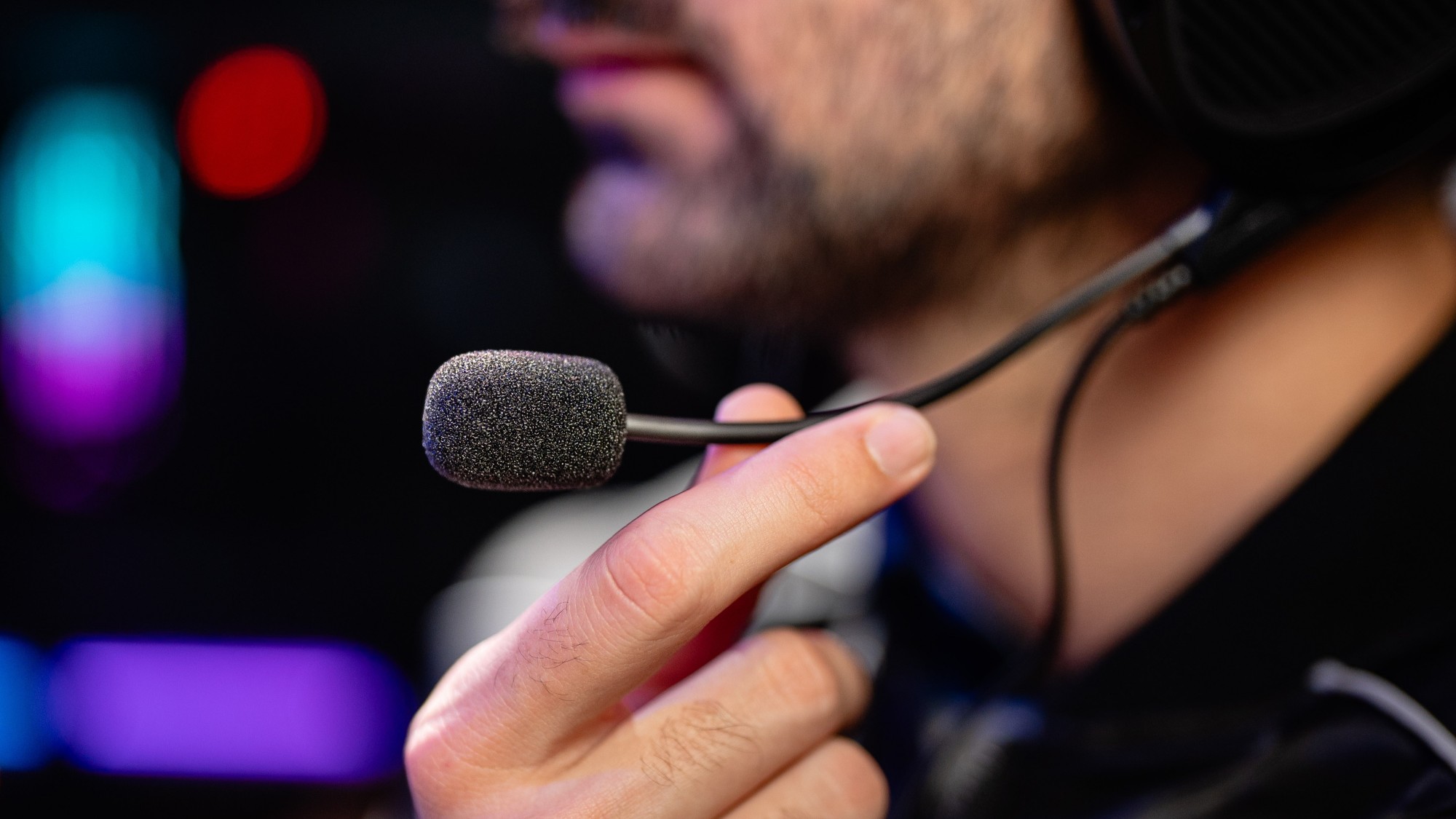
“You're on mute” has a less funny cousin: you are not on mute, you can hear everyone, and nobody can hear you. Microphone problems are confusing because three different devices — your headset, your webcam and your laptop — may all be offering a microphone at once, and your apps only listen to one of them. This guide tests the microphone directly, then fixes the causes in order.
Step 1: Test the mic and actually listen back
Start with the microphone test on this site. Press Start microphone and speak at your normal volume from where you actually sit. You should see a live waveform that follows your voice and a level meter bouncing in the middle range. Then use the record-and-playback button: record five seconds and play it back. Playback is the step most people skip, and it is the only one that tells you what everyone else hears — muffle, echo, room noise and all. Nothing is uploaded: the recording exists only in your browser tab, as our Privacy Policy explains.
Interpret the result before touching settings. A flat waveform means no signal is arriving at all. A waveform that moves but playback that sounds distant and echoey means the wrong microphone is selected — you are being recorded by a laptop or webcam mic across the room. A waveform pinned at maximum the whole time means the input gain is too high and your voice will distort.
Step 2: Find the mute you forgot about
Modern headsets mute in three places: a physical switch or flip-up boom on the headset itself, a mute button on the cable or earcup, and the software mute in your app. Any one of them silences you, and the app's icon often only reflects its own mute. Flip the boom down, check the inline switch, then check the app. While you are there, confirm the app is set to the same microphone the browser test just proved works.
Step 3: Select the right input — everywhere
Your operating system has a default input device, and many apps ignore it and keep their own selection. On Windows, open Settings, then System, then Sound, and look at which input is chosen and whether its test meter moves when you speak. On a Mac, open System Settings, then Sound, then Input. Then open your meeting app's audio settings and set the same device explicitly rather than leaving it on “system default”. Headsets with detachable cables deserve one extra check: a plug pushed in one click short leaves headphones working and the microphone dead.
Step 4: Set a level that works
If people say you are very quiet, the input volume may be turned down at system level, or you may be speaking past the microphone instead of into it — a boom mic should sit a finger's width from the corner of your mouth, not in front of your nose or under your chin. If you sound harsh or distorted, turn the input down rather than up; clipping cannot be undone by listeners. Re-run the record-and-playback test after each change, one change at a time, so you know which one fixed it.
Step 5: Permissions and the Bluetooth trap
Browsers and operating systems both gate microphone access. If the test says permission was denied, allow the microphone for this site in the address-bar site settings, and check the system privacy panel lists your browser as allowed. Bluetooth users should know the classic trap: when any app opens the microphone on a Bluetooth headset, many headsets drop into a low-quality call profile for both directions. If your audio suddenly sounds like a phone call from 2005 whenever the mic is live, that profile switch is why — a wired headset or a separate USB microphone avoids it entirely. Our speaker test guide covers the matching output-side version of this problem.
When to call it faulty
A microphone that stays flat in the browser test, with the right device selected, permissions on and the hardware mute off, on two browsers or two computers, is faulty. Before replacing a headset, test with the laptop's built-in mic: if that works, you have isolated the fault to the headset or its cable. And if your camera is misbehaving too, work through How to Test Your Webcam When It's Not Working — camera and mic permissions are usually blocked together.
A quick checklist before your next call
Run through this two-minute routine before any important call and microphone surprises mostly disappear. First, open the test page and confirm the waveform moves when you speak at normal volume. Second, record five seconds and play it back — if you would not want to listen to that voice for an hour, neither will anyone else. Third, confirm the microphone named in the test is the one selected in your meeting app, because the two are chosen independently. Fourth, glance at the physical mute: boom up, switch on, or cable control lit all mean different things on different headsets, so learn yours while you are calm rather than mid-meeting. Finally, keep a fallback ready — the laptop's built-in microphone is nobody's first choice, but knowing it works turns a headset failure from a cancelled meeting into a thirty-second switch. If your voice is fine but you cannot hear the room, the fault is on the output side, and the speaker guide takes over from there.
Try it now: run the free Microphone test — it runs in your browser, and nothing is uploaded.