Guide · Device Test Toolbox
How to Test Your Mouse for Double-Clicking and DPI Problems
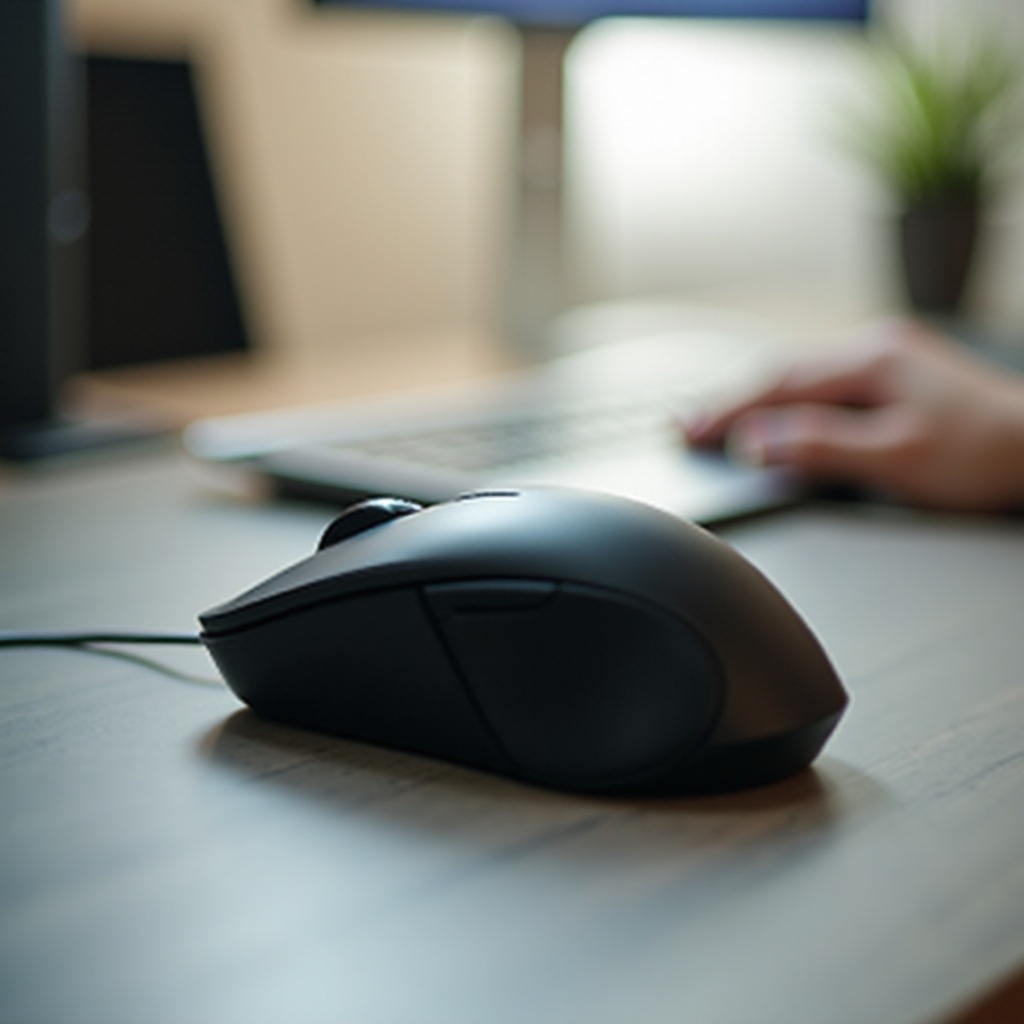
The mouse fault everyone eventually meets has a specific feel: you click once and the computer acts twice. A file opens when you meant to select it; a drag drops halfway. That fault is called chatter, it lives in the switch under the button, and it only gets worse. This guide tests for it properly, covers the other common mouse faults, and explains DPI and polling rate in terms that help you set them sensibly.
Step 1: The single-click test for chatter
Open the mouse test on this site. Click the left button once — slowly, deliberately — ten times in the test pad, and compare your clicks with the counter. If the count runs ahead of you, or the double-click readout shows impossibly short gaps between what were separate presses, the switch is bouncing: one physical press is producing two electrical signals. That is chatter, caused by a worn micro-switch, and it is the single most common reason mice are replaced. Test the right and middle buttons the same way; the fault usually starts on the most-used button, which is why it is normally the left.
Step 2: Double-click, scroll and movement
Now double-click deliberately and check it registers as a double-click — a mouse that chatters often also fails here, because the system cannot tell intention from noise. Roll the scroll wheel slowly: a wheel that occasionally jumps backwards, or scrolls in steps that reverse, has dust or wear in its encoder; compressed air is worth one try. Finally, sweep the pointer across the pad in fast flicks. A sensor that skips, stalls or spins out on fast movement will show it here — and if it only happens on your desk, try a plain dark mouse mat before blaming the mouse, because glass and glossy surfaces defeat many sensors.
What DPI actually is
DPI — more precisely CPI, counts per inch — is how many counts the sensor reports for each inch the mouse moves. Higher DPI means the pointer travels further for the same hand movement. It is a sensitivity setting, not an accuracy rating: a 25,000 DPI sensor is not more accurate than a 1,600 DPI one in any way you can feel, it is simply capable of extreme sensitivity almost nobody uses. Most people work and play between 400 and 3,200 DPI. The practical approach is to pick a DPI where you can cross your screen with a comfortable arm or wrist movement, then leave it fixed — consistency builds aim and comfort. Change pointer speed in small steps and live with each for a day before judging.
Polling rate and pointer settings
Polling rate is how often the mouse reports to the computer: 125 Hz is every 8 ms, 1,000 Hz every 1 ms. Higher polling makes motion marginally smoother and pairs naturally with high-refresh displays — if you have followed our refresh rate guide and unlocked 144 Hz, a 1,000 Hz mouse completes the picture. In your operating system, one setting matters more than any other: turn off pointer acceleration (“Enhance pointer precision” on Windows) if you want the same hand movement to always produce the same pointer movement. Acceleration is fine for trackpads and frustrating for precision work and games.
Software fixes worth trying first
If double-clicks appear everywhere, check the system's double-click speed setting — set too fast, it merges deliberate pairs; set too slow, ordinary clicks pair up. Update the mouse's firmware and software if it has any, try a different USB port, and for wireless mice, move the receiver closer with an extension cable and replace or recharge the battery: a dying battery causes dropouts that mimic switch faults. Test on a second computer if you can; a fault that follows the mouse is the mouse.
The verdict on a chattering mouse
Be honest about the economics: on most mice, the switch is soldered and replacement is not a practical repair, so confirmed chatter means warranty claim or replacement. Describe it precisely — “left switch registers double-clicks from single presses, confirmed on a click counter” — and support conversations get short. The same test-first logic applies to the rest of your desk: our keyboard guide covers the identical chatter fault in mechanical keyboard switches, and the controller guide covers stick drift, gaming's version of a control that lies to you.
Wireless mice: the extra checks
A wireless mouse adds failure modes a wired one never has, and the test pad separates them cleanly. Dropouts — the pointer freezing for a beat, clicks that never arrive — usually mean interference or distance: the receiver is in the back of a PC under a desk, sharing airspace with a dozen other 2.4 GHz devices. Plug the receiver into a front port or an extension cable so it sits near the mat, and re-test. Bluetooth mice trade that dongle problem for occasional pairing amnesia after sleep; if the mouse vanishes on wake, re-pairing once and updating firmware usually settles it. Battery state matters more than people expect — a mouse at the end of its charge often misbehaves for days, skipping and double-registering, before it dies outright, so charge or swap the battery before concluding the switches have gone. Only when a mouse chatters on a short cable-equivalent connection, fully charged, on a second computer, have you truly cornered the switch — and at that point the verdict in the previous section stands.
Try it now: run the free Mouse test — it runs in your browser, and nothing is uploaded.